Disclosure: This article may contain affiliate links. If you purchase through certain links, I may earn a commission at no additional cost to you.
Introduction
Installing WordPress is one of the most exciting steps in building your first website. Once WordPress is installed, you’ll have access to a powerful content management system that allows you to create pages, publish blog posts, customize your site’s design, and grow your online presence.
The good news is that most modern hosting companies make WordPress installation incredibly simple. In most cases, you can have WordPress installed and running in just a few minutes.
This guide will walk you through the process.
Before Installing WordPress
Before you begin, make sure you already have:
✅ A domain name
✅ A hosting account
✅ Access to your hosting dashboard
If you haven’t completed those steps yet, start here.
📘 Domain Guide
How to Buy a Domain Name for Your First Website
Learn how to choose a memorable domain name and avoid common mistakes. Read the Guide →
📘 Hosting Guide
How to Choose the Best Web Hosting for Beginners
Learn how to select reliable hosting that makes WordPress setup simple. Read the Guide →
What Is WordPress?
WordPress is the software that powers your website.
It allows you to:
- Publish articles
- Create pages
- Customize your design
- Install plugins
- Manage media files
- Improve SEO
Today, WordPress powers millions of websites worldwide because it is flexible, beginner-friendly, and highly customizable.
Step 1: Log Into Your Hosting Account
After purchasing hosting, log into your hosting dashboard.
Most providers include a simple control panel where you can manage:
- Domains
- Email accounts
- WordPress installations
- Security settings
- Website backups
Look for a section labeled:
- WordPress
- Website
- Websites
- Softaculous
- One-Click Installs
Depending on your host, the wording may vary slightly.
Step 2: Find the WordPress Installer
Most modern hosts provide a one-click installer.
Look for:
- Install WordPress
- Create Website
- WordPress Setup Wizard
Click the installer to begin the setup process.
Bluehost Setup Example
Bluehost makes WordPress installation especially easy for beginners.
⭐ Recommended for Beginners
Bluehost
- One-click WordPress installation
- Beginner-friendly dashboard
- Easy website setup
- Reliable hosting
📘 Bluehost Review
Bluehost Review: Is It the Best Web Hosting for Beginners?
See pricing, performance, support, and setup features before choosing a hosting provider. Read the Full Review →
Step 3: Choose Your Domain
During setup, you’ll usually be asked which domain name should be connected to the WordPress installation.
Select the domain you purchased earlier.
Example:
- yourwebsite.com
Make sure you select the correct domain before proceeding.
Step 4: Create Your Website Login
You’ll be asked to create:
- Username
- Password
- Administrator Email Address
Choose a strong password and store it safely.
This login will be used to manage your entire website.
Step 5: Complete Installation
After submitting your information, WordPress will install automatically.
The process typically takes only a few minutes.
When complete, you’ll receive a login URL similar to:
yourwebsite.com/wp-admin
Bookmark this login page because you’ll use it frequently.
Step 6: Log Into WordPress
Visit your login page.
Example:
yourwebsite.com/wp-admin
Enter your username and password.
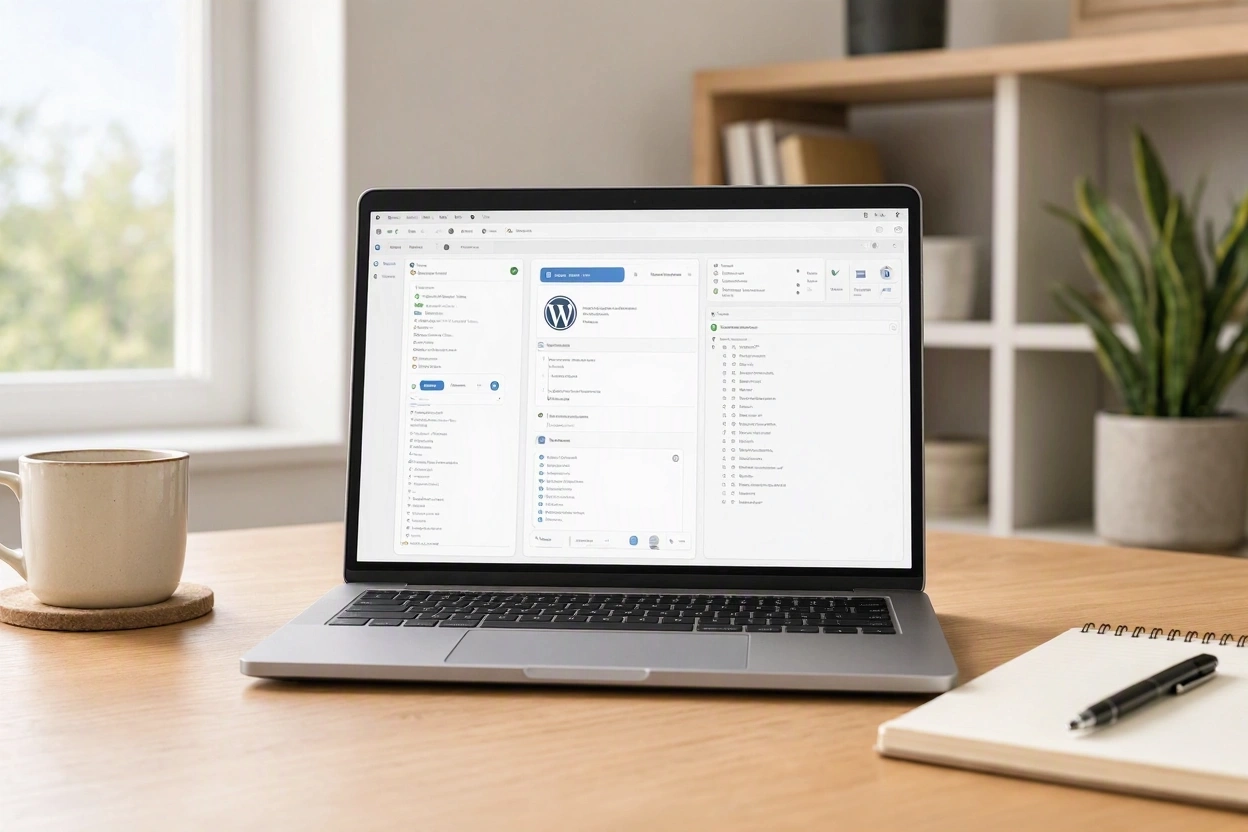
You should now see the WordPress Dashboard.
Congratulations! Your website is officially live.
Understanding the WordPress Dashboard
Inside WordPress you’ll find several key sections.
Posts
Used for blog articles and content.
Pages
Used for permanent pages such as:
- Home
- About
- Contact
- Privacy Policy
Media
Stores images and files.
Appearance
Controls themes and customization.
Plugins
Adds new website features.
Your First Tasks After Installation
Once WordPress is installed, focus on these tasks:
Create Core Pages
Start with:
- Home
- About
- Contact
- Privacy Policy
Choose a Theme
Select a clean, mobile-friendly design.
Install Essential Plugins
Only install plugins you actually need.
Publish Your First Article
Content is what attracts visitors and search traffic.
Common Installation Mistakes
Forgetting Login Credentials
Always save your username and password.
Installing Too Many Plugins
A simple website usually performs better.
Spending Too Much Time Designing
Most beginners focus too much on appearance and not enough on publishing content.
Not Creating Backups
Always have a backup strategy from the beginning.
What Comes Next?
After WordPress is installed, you’ll want to customize your site’s appearance and functionality.
📘 Coming Next
Essential WordPress Plugins for New Websites
Discover the plugins that can help improve security, SEO, forms, backups, and performance.
Coming Soon →
Additional Resources
📘 Website Building Guide
How to Build Your First Website with WordPress
Follow the complete beginner-friendly roadmap for launching a successful website. Read More →
📘 Affiliate Marketing Guide
How to Start an Affiliate Marketing Website
Learn how to build a website that can generate affiliate income over time. Read More →
Final Thoughts
Installing WordPress is much easier than many beginners expect. Most hosting companies now provide one-click installation tools that can get your website online in just a few minutes.
Once WordPress is installed, focus on creating useful content, helping your audience, and learning as you go.
The most successful websites aren’t built overnight. They’re built one article, one page, and one improvement at a time.
Continue Learning